Standard Logos Megapack
Football Manager Logos in the Standard style
- 134,273
- 2022.01 - Released on 31 Jan 2022
This file is old and may not be compatible with FM26 and later.
Installation Instructions
Step 1) Where to put Football Manager Graphics
Once you've downloaded a Football Manager Graphic Pack and extracted it you should be left with a single folder on your computer. You're going to need to move that folder into a special location where Football Manager can find it.
Apple: Where to put the FM Graphic Packs on Mac
You will need to copy the folder to this location:
/Users/<yourname>/Library/Application Support/Sports Interactive/Football Manager 2022/graphics
You may find it difficult to find this exact location, to make it easier, use the following instructions:
a) Open Finder
b) Click “Go” from the menubar and select “Go to Folder” (alternatively press Shift+CMD+G)
c) Copy in the following: ~/Library/Application Support/Sports Interactive/
d) Open the “Football Manager 2022” folder
e) Open the “graphics” folder (or created it if it doesn't exist)
f) Move the downloaded files into the ”graphics" folder
Windows: Where to put the FM Graphic Packs on Windows
Simply move the folder to the following location:
Documents/Sports Interactive/Football Manager 2022/graphics
What if I don't have a graphics folder?
If you don't have a “graphics” folder simply create it 🙂
What if the downloaded files ends with .zip, .rar, .7z
If you have a file that ends in .zip, .rar or .7z then you'll need to extract the files before installing them. These files are called “archives” and are a way to compress a folder into a single file for downloading but you'll need to open them and get the folder that's in them before installing. DO NOT put these files in your graphics folder, it won't work.
Extract the files first and then put the extracted files into your graphics folder. If you're not sure how to extract them, look at these guides for windows or for mac.
What if the downloaded files are in parts e.g. “part01.rar”, “part02.rar” etc
If you have downloaded a pack in multiple parts ending in “part01.rar”, “part02.rar” etc then you do not have to extract them all individually. Just extract “part01.rar” and the rest should all be extracted automatically.
Step 2) How to refresh graphics in Football Manager
Unfortunately even though you have the folder in the right place Football Manager won't automatically pick up the new files. You're going to have to go in and tell Football Manager to reload your graphics.
Simply follow these instructions:
a) Open Football Manager
b) Click Preferences on the start screen (or if you're already in a game FM Logo > Preferences)
c) Click the “Advanced” tab
d) On the right hand side select “interface”
e) Scroll down the Skin Heading
f) Uncheck “Use caching to decrease page loading times”
g) Tick “Reload skin when confirming changes to preferences”
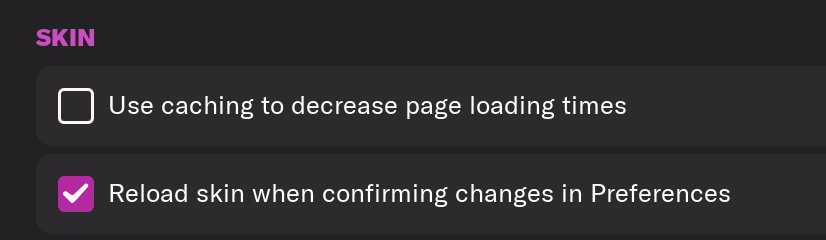
h) Click “Reload Skin”
And now your graphics should be appearing.
You should go back into the preferences and follow the same steps but this time tick “Use caching to decrease page loading times”, this will help with the long term performance of the game, but needed to be unticked to install these graphics.
You'll need to Login to comment
bakizp
Yes, I have them already 👍
Anno8911
Hi all, great work!
Is there a base 2024 set with update files for 2025 or do we have to download from 2022
Thanks to all and keep up the great work!
edit: what is the total count now?
Thanks
Baja
It such a shame that this logopack stoped…
Here are all possible logos from EX-YU (Serbia,Bosnia,Croatia,Kosovo,Montengro,Macedonia & Slovenia) with best possible quailty 👌
Download link,since file is too large for attachments.
https://www.sendspace.com/file/9l0uw6