FM05-24 3D Kits
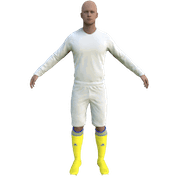
3D Kits are special kits designed to make the match engine look even better, with the players wearing customised and improved kits on the pitch.
These will only work with FM24 and earlier. They will not work with the most latest unity versions from FM26 onwards.
- 913
- 2026.07 - Released on 06 Jul 2026


🛠️ Football Manager 2024: Real Madrid 3D Kitpack Installation Guide
✅ Step 1: Download the Kitpack
- Download the
real madrid kitpack.zipfile from the here. - Ensure the file is properly downloaded and saved in your
Downloadsfolder or a location of your choice.
📂 Step 2: Locate the FM24 Graphics Folder
- Go to the following directory on your PC:
C:\Users\{yourusername}\Documents\Sports Interactive\Football Manager 2024\graphics - If the
graphicsfolder does not exist:- Create a new folder named
graphics.
- Create a new folder named
📦 Step 3: Extract the Kitpack
- Move the downloaded kitpack (
real madrid kitpack.zip) to thegraphicsfolder. - Extract the ZIP file using WinRAR, 7-Zip, or any archive tool:
- Right-click the ZIP file →
Extract HereorExtract to Real Madrid kitpack/.
- Right-click the ZIP file →
- The extracted folder should contain:
3Dkit files for matchday view.2Dkit files for the club information screen.
🔄 Step 4: Reload the FM24 Skin
- Open Football Manager 2024.
- Go to:
Preferences → Interface - Scroll down and click:
Reload Skin - Wait for the game to reload the new graphics.
- Your Real Madrid kits should now be visible in both:
- 2D (Club Overview, Tactics)
- 3D (Match Engine)
⚠️ Note About Club Colors
- The club colors will not automatically change with the kitpack installation.
- This may cause:
- Player number visibility issues due to color mismatch.
- Discrepancy with FM24 menu colors.
🎯 Step 5: Fixing Club Colors Using FM24 Editor
- Close FM24.
- Open the FM24 Pre-Game Editor (download it from Steam if you don't have it).
- Go to:
Database → Club → Real Madrid - Edit the following:
- Club Colors: Change them to match the new kit colors.
- First Kit: Edit the colors to match the new home kit.
- Second Kit: Edit the away kit colors.
- Third Kit: Adjust third kit colors if available.
- Save the changes.
- Start a new save for the color changes to take effect.
🔧 Troubleshooting Tips
- If the kits don’t show up:
- Make sure caching is disabled in Preferences → Interface.
- Tick the option:
Reload skin when confirming changes.
- If you can't see the editor changes:
- You must start a new save for club colors to update.
✅ Final Tips
- Enjoy your custom Real Madrid kits with full 2D and 3D visuals.
- If you encounter any issues, recheck the folder path and ensure the skin is reloaded properly.
🔥 Hala Madrid! 🎯
You'll need to Login to comment