
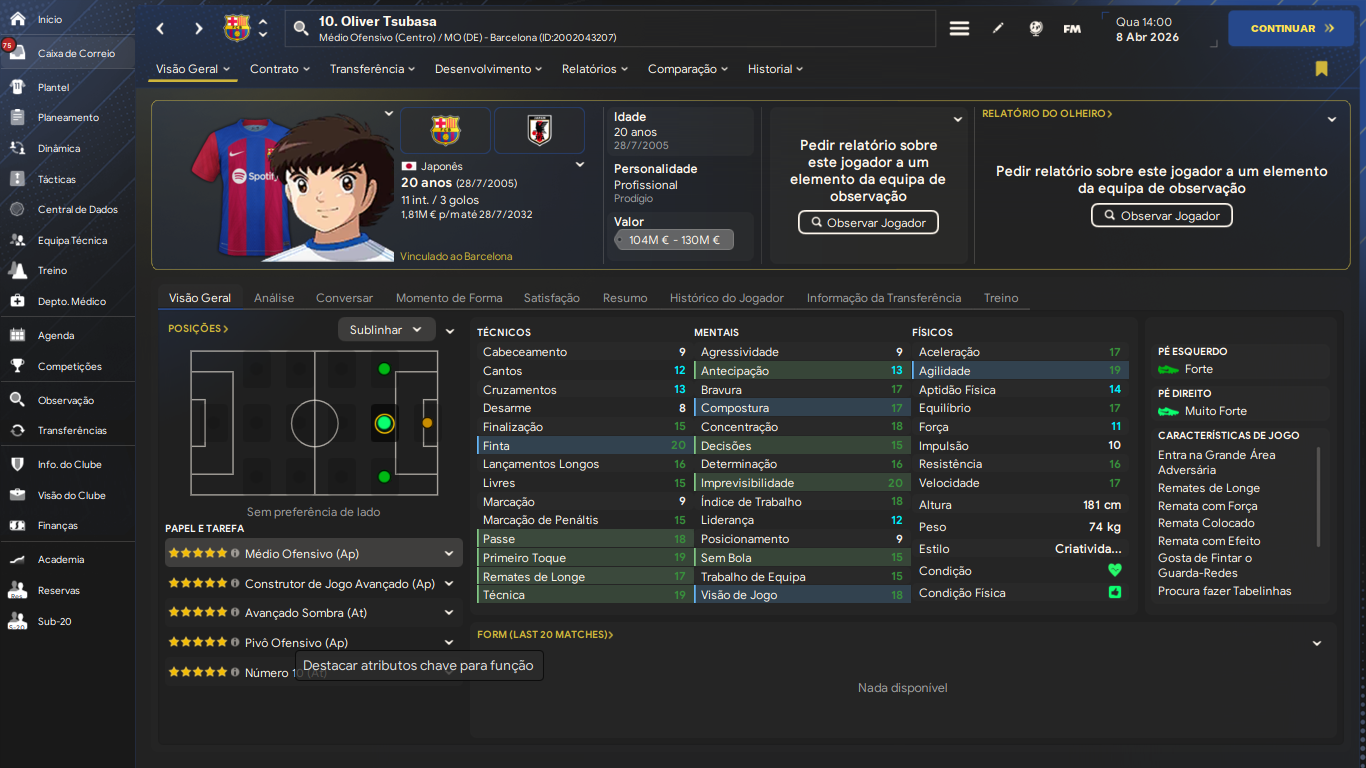
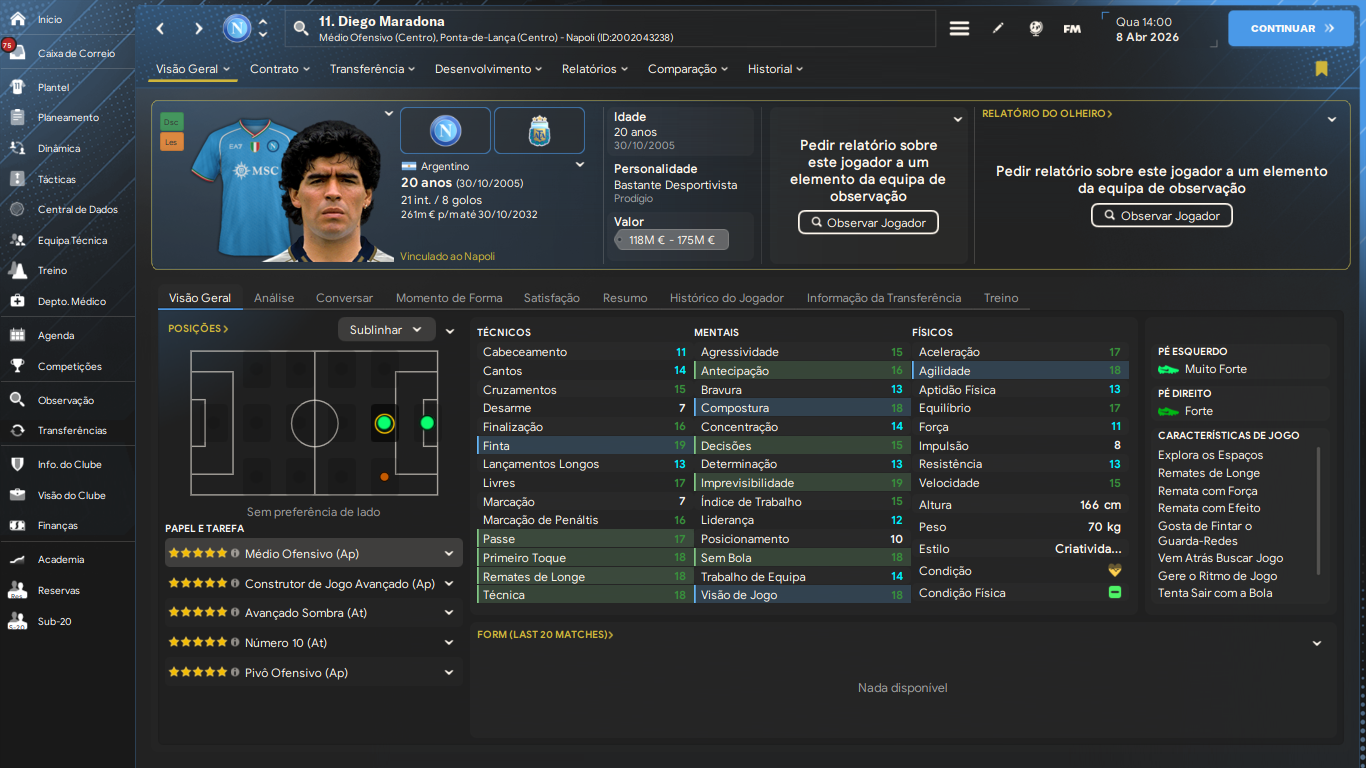
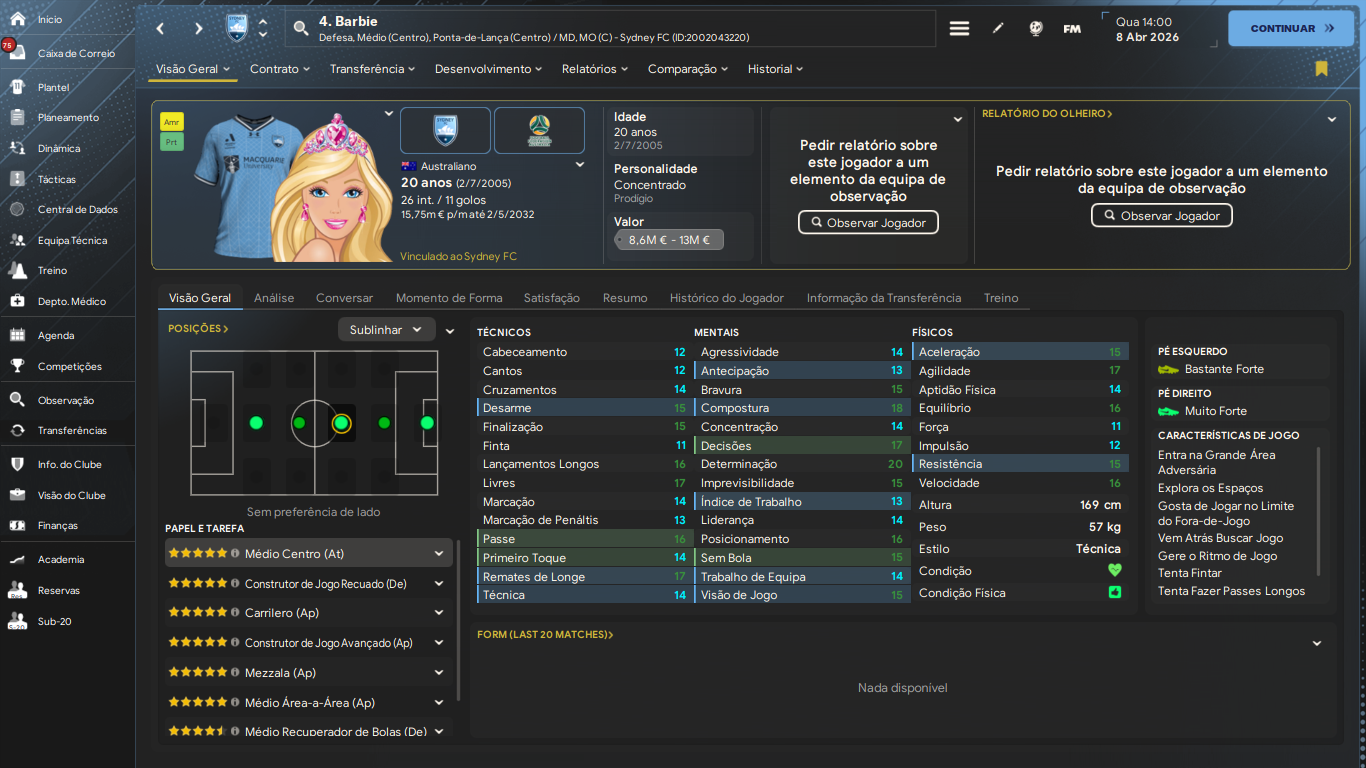

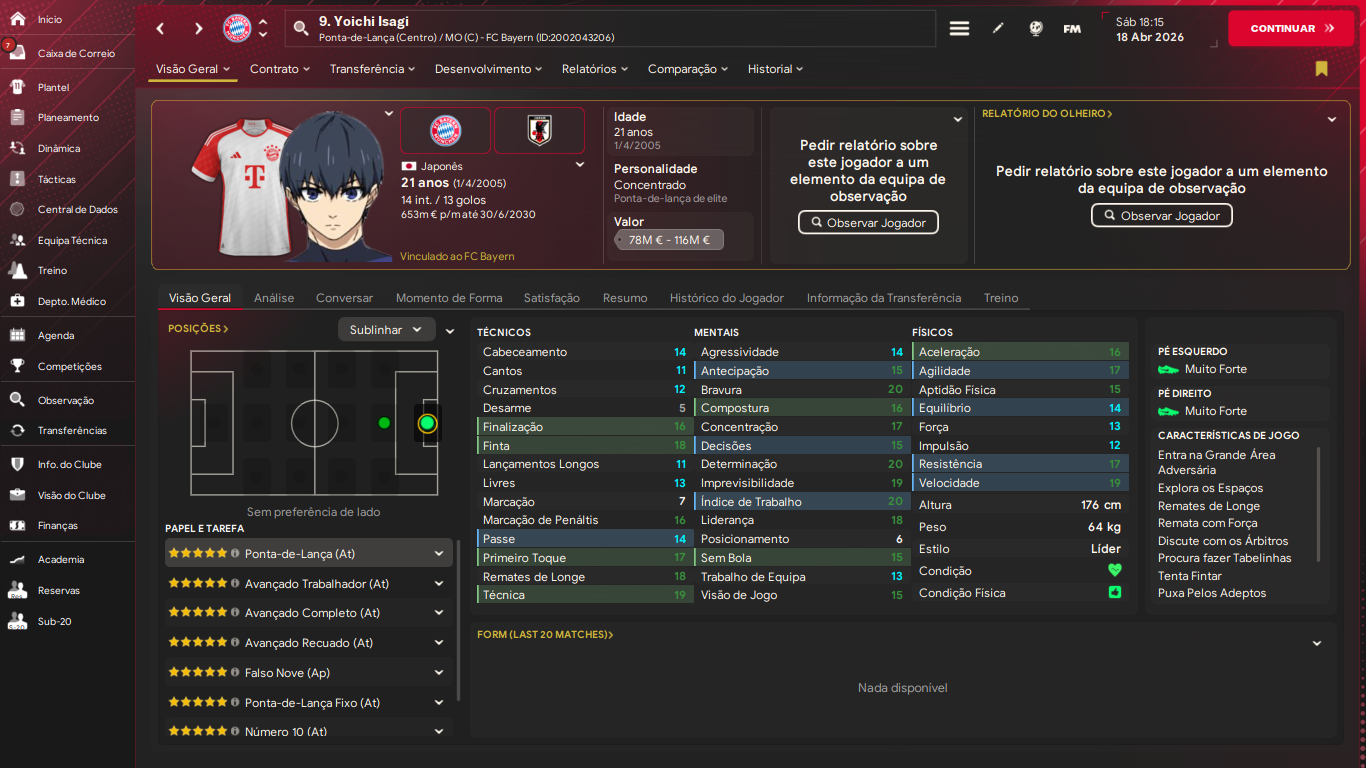
This is the FM 23 version, however, now compatible with FM 24. Some other characters and players were added in this version. Download, install and enjoy my bizarre MOD!

- Date Created
- 16 Sep 2024 03:20:24
- Date Updated
- 16 Sep 2024 03:20:25
- Last Comment
- 05 Oct 2024 04:06:18
Comments
You'll need to Login to comment
Nate business
Not sure if the face pack is working properly.
Joga Bonito2223
1 - Make sure the directories are correct, there may be a faces folder inside the faces folder itself, if this happens, copy all the files and place them in the correct faces folder.
2 - See if the player IDs in your game match the face IDs.
Example: If in the game, a certain player has ID 2002043215, then the name of the face file will be "2002043215.png"
To check this, you will need to activate the option to show player IDs in your Football Manager settings.
3 - If the file IDs and file names match. You will then need to recompile the "config.xml" file. To do this, use the “fmXML” tool, which is easily found on the internet.
Before opening it, delete the "config.xml" file, which will be inside your faces folder (I recommend backing up this file to another location in case something goes wrong) After that, open the program, click on "Browse", choose the directory where your faces folder is and click "OK".
Make sure that the options "Create config.xml file", "faces" and "All file names are IDs" are checked, as shown in the example below. Click "GO" and wait for the file to be created. If everything goes normally, you will see a message that looks very similar to the second image. After all these procedures, open the game again and check if the problem has been resolved.
4 - If no solution has worked for you, download the "config.xml" file that I will leave for Download and paste it in the faces folder, replacing the old file.
I hope I helped you as much as possible!