URAN Ultra Realistic Newgan Faces Megapack
Newgans (also known as Regens) are players the game generates as you play, the fake players that join your youth team. Download this Ultra Realistic Regen Player Faces Megapack to give these players super realistic faces in Football Manager instead of the awful player faces the game generates by default.
This pack is known as URAN which stands for “Ultra Realistic Allocated Nationally”. When combined with FM.Z Tool AI faces will accurately be linked with your newgens based on both ethnicity and nationality for the most realistic experience possible.
With this megapack new young players that the game generators will have realistic photographs of players faces. Thanks to the FM.zweierkette Community
- 55,244
- 2024.01 - Released on 09 Sep 2024
This file is old and may not be compatible with FM26 and later.
Installation Instructions
Follow these steps to install realistic newgen/regen faces in football manager.
This guide is the latest version and supersedes the original NewGan Manager Guide. Use that guide if you've previously used the NewGan Manager and are continuing an existing save with old configs. In all our other instances use this new guide.
Step 1) Extract the Zip
Once you've downloaded the Newfan Faces Megapack you should have a .zip file somewhere on your computer called something like “newgan_faces.zip” (the name may change to include a version number in the future that's fine).
You'll need to extract this file which is very easy to do:
Apple: Unzip Newgan Faces Megapack on Mac
To unzip the Newgan Faces Megapack on a Mac you can simply double click it.
Windows: Unzip Newgan Faces Megapack on Windows
To unzip the Newgan Faces Megapack on Windows simply right click and click “Extract All”
Step 2) Move the folder
Once you've extracted the zip file you should have a folder called “players” you will need to move this to a special location where all your Football Manager Add Ons are stored.
Apple: Where to put the Newgan Faces Megapack on Mac
You will need to copy the folder to this location:
/Application Support/Sports Interactive/Football Manager 2024/graphics
You may find it difficult to find this exact location, to make it easier, use the following instructions:
a) Open Finder
b) Click “Go” from the menubar and select “Go to Folder” (alternatively press Shift+CMD+G)
c) Copy in the following: ~/Library/Application Support/Sports Interactive/
d) Open the “Football Manager 2024” folder
e) Open the “graphics” folder (or created it if it doesn't exist)
f) Move the “players” folder into this folder and rename it something more useful like ”AI Newgen Faces"
Windows: Where to put the Newgan Faces Megapack on Windows
Simply move the “players” folder to the following location and rename it something more useful like ”AI Newgen Faces"
Documents/Sports Interactive/Football Manager 2024/graphics
If you don't have a “graphics” folder simply create it 🙂
Step 3) Download and Install FM.Z Tools
Visit this page to download FM.Z Tools. There is a version for both Windows and Mac.
When you download it you will be greeted by a .zip file. Follow the same steps as in Step (1) to unzip this file.
Windows Installation
When you download it you will be greeted by a .zip file. Follow the same steps as in Step (1) to unzip this file.
You should see a structure like this
- filters
- is newgen search filter.fmf
- views
- SCRIPT FACES player search.fmf
- SCRIPT FACES shortlist.fmf
- SCRIPT FACES squad.fmf
- SCRIPT FACES staff.fmf
- dist
- FMZ Tools v1.0.msi
Double click on the following file FMZ Tools v1.0 Installer Windows/dist/NewGAN-Manager.msi This will then install the program on your computer.
Then copy the “views” and “filters” folders to the following location:
Documents/Sports Interactive/Football Manager 2024/filters
Documents/Sports Interactive/Football Manager 2024/views
Mac Installation
When you download it you will be greeted by a .zip file. Follow the same steps as in Step (1) to unzip this file.
Double click on the file called FMZ Tools v1.0 Installer Mac.dmg
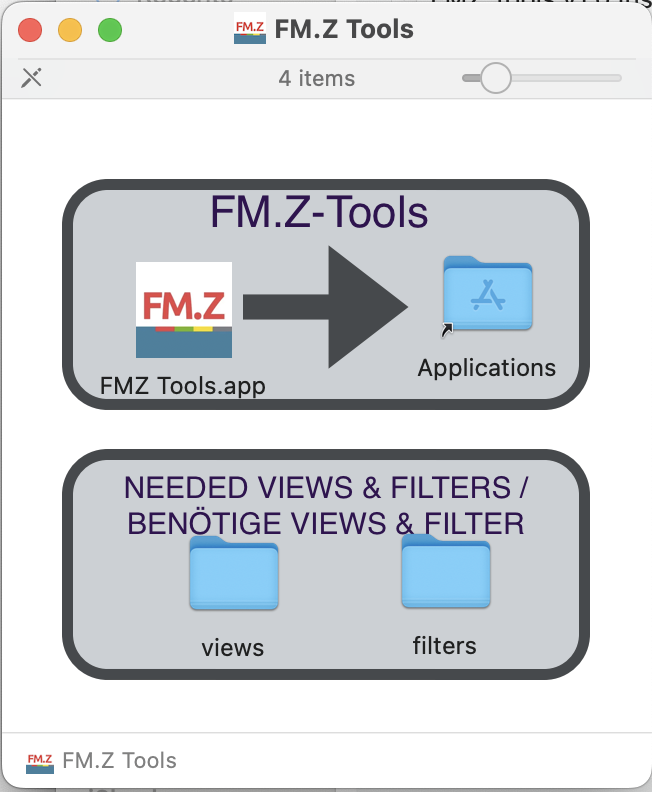
Drag the “FMZ Tools.app” icon onto the “Applications” icon.
Then drag the “views” and “filters” folders to the following location:
Application Support/Sports Interactive/Football Manager 2024/filters
Application Support/Sports Interactive/Football Manager 2024/views
Step 4) Open the FM.Z Tools
Open the FM.Z Tools application as you would any other program on your computer.
You may receive an error on Mac
“FM.Z Tools.app”cannot be opened because the developer cannot be verified.”
To get around this simply go to Library > Applications find FM.Z Tools and click Right Click > Open and then select “Open”
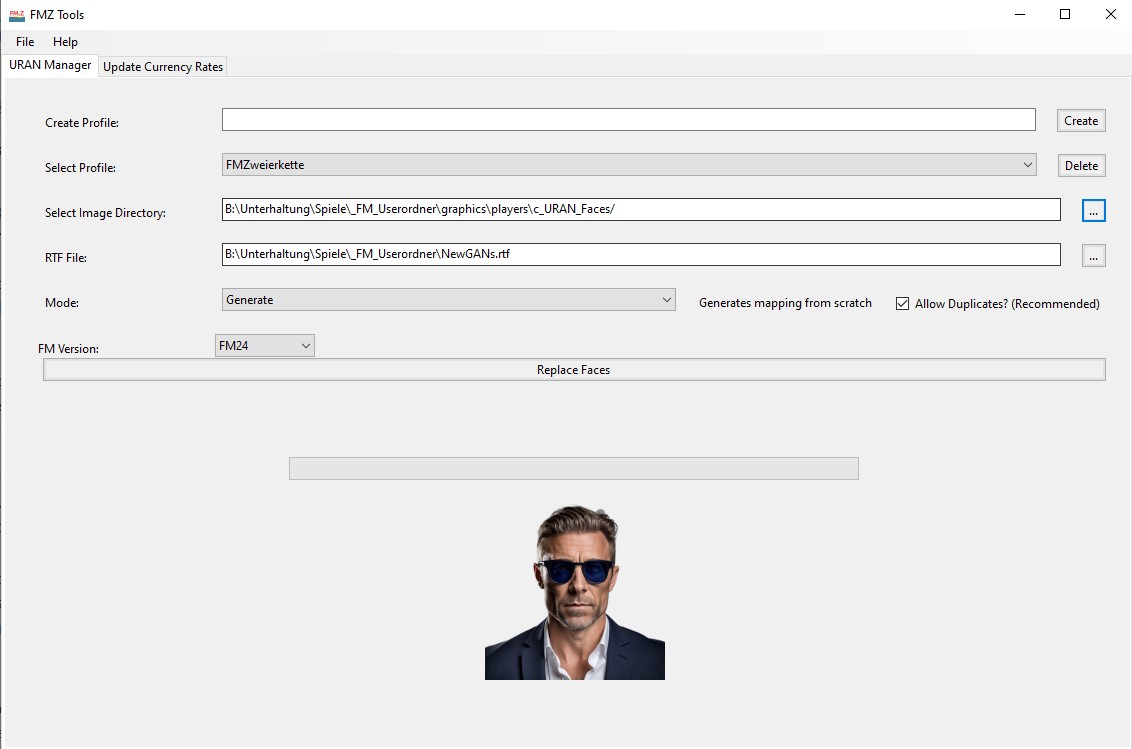
When you open the tool you will see something like this:
Step 5) Generating an RTF File in Football Manager
Now follow these instructions very carefully:
- Now open Football Manager and load your saved game.
- Click the FM Icon > Add New Manager and add a new manager
- (The reason for this is because your manager can be limited by your clubs scouting network, unemployed managers can view all players)
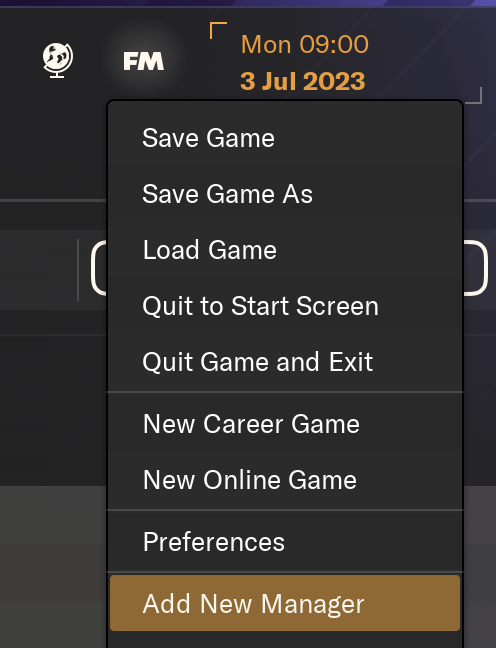
- Now playing as the new manager click “Shortlist” on the left
- Then click “New Search” in the top right (It may also say “Edit Search”)
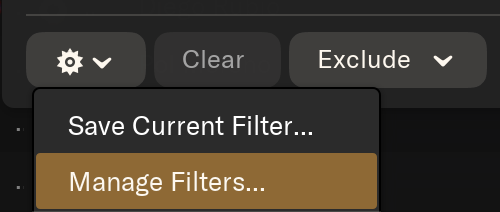
- Now in the bottom left click the ⚙️ settings cog icon > Manager Filters
- Click “import” in the top right
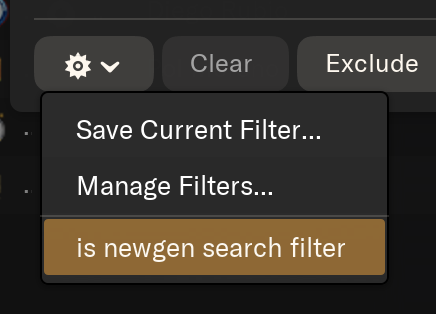
- Now you should see a file called “is newgen search filter” select it and then click “load” in the bottom right
- If you don't see “is newgen search filter” then you've put the “filters” folder in the wrong place in the last step
- Now back on the screen we just were click ⚙️ again and now “is newgen seach filter”
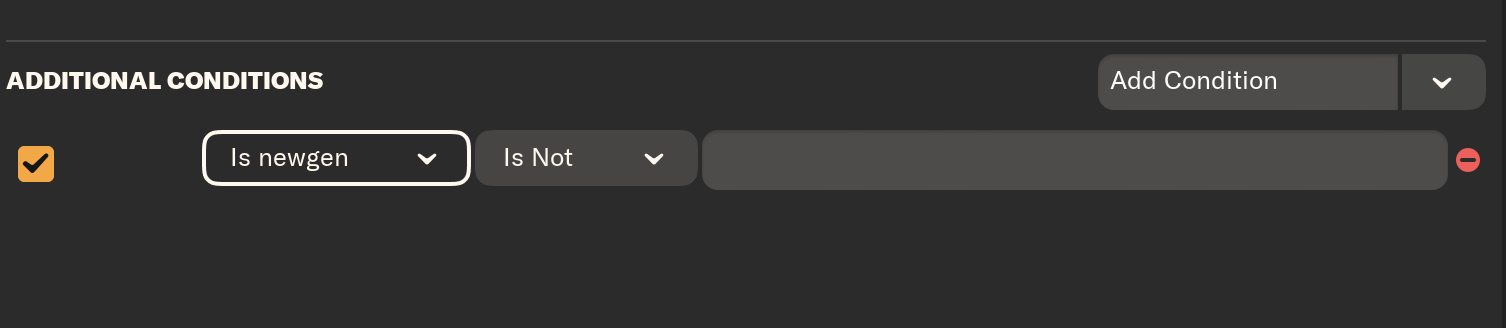
- A new filer will now popup that looks like this:
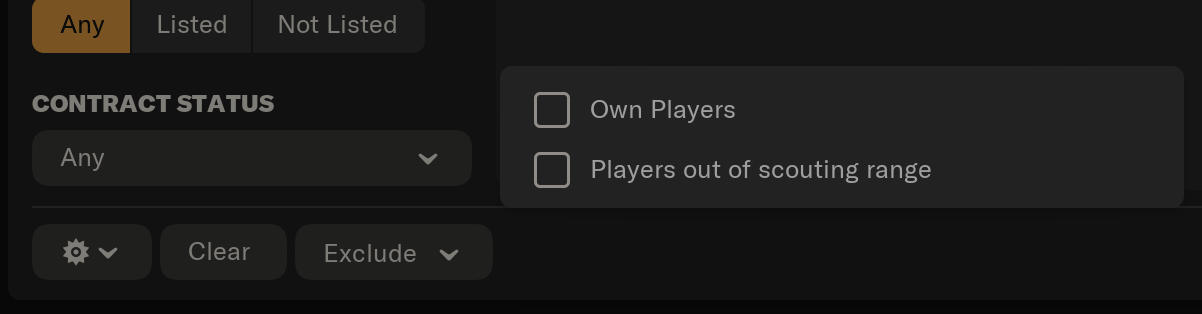
- Now make sure the search isn't excluding your own players by clicking “Exclude” and making sure “Own Players” is unchecked.
- Click “Ok” to search and you will see some search results.
- Warning: If you have too many results e.g. 10,000 + you may find the next few steps to be very slow or crash you can use other filters like age to make the number of results smaller.
- Now click the dropdown button that lets you customise the view (you may also be more familiar with right clicking the table headings)
- Then click on Custom > Import View
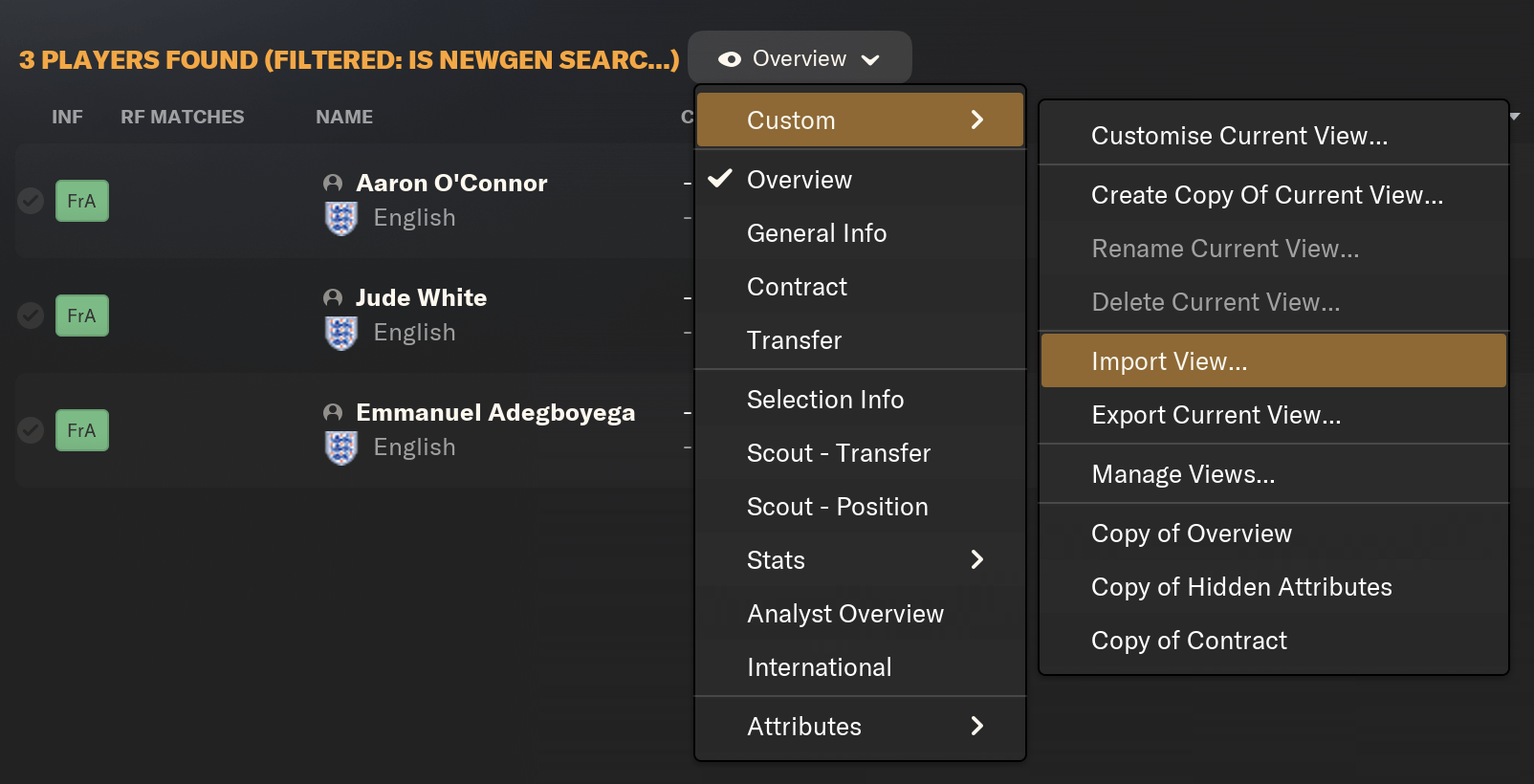
- You should see the views from the views folder that you moved in the last step. If you don't you did something wrong there.
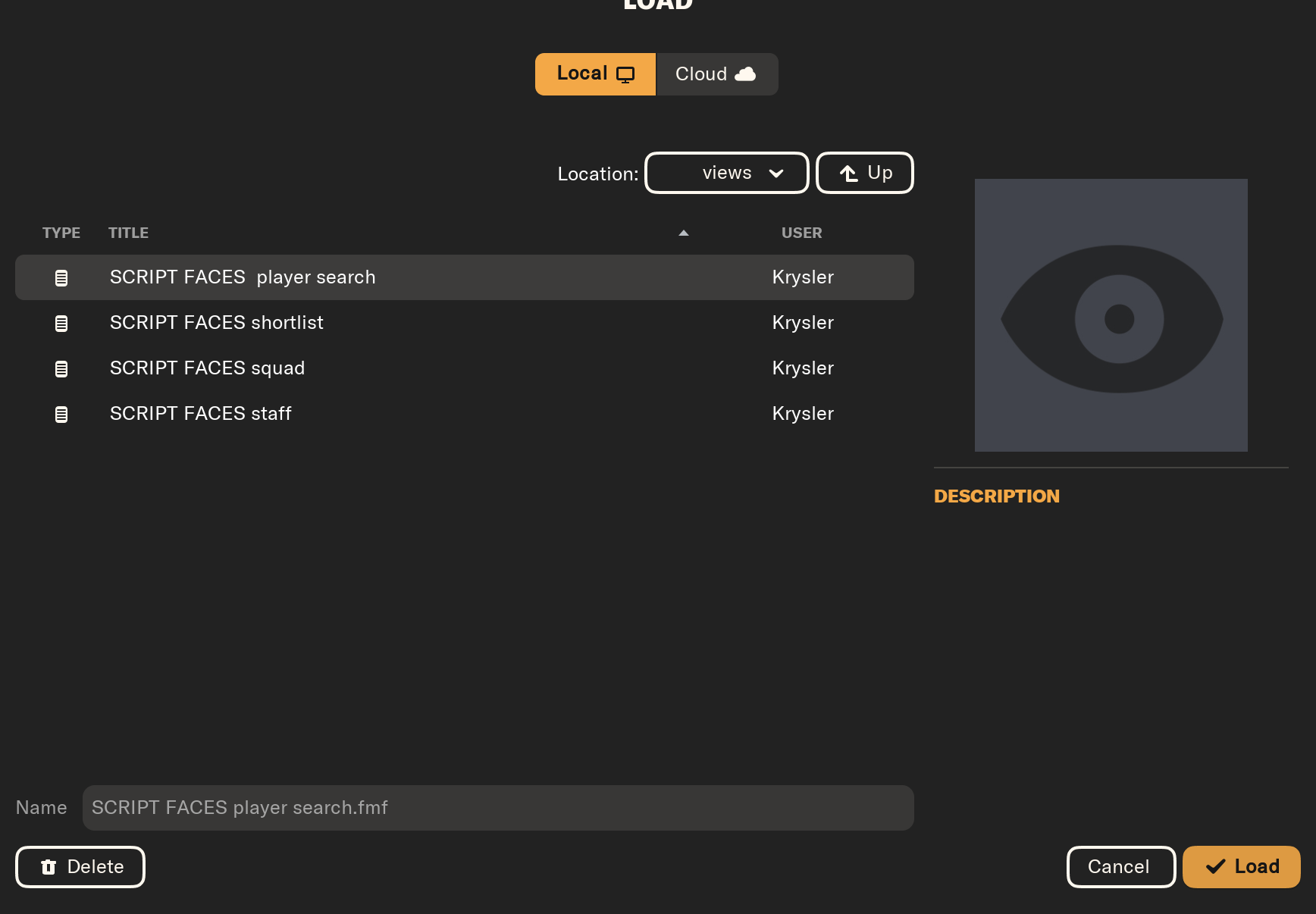
- Now click “SCRIPT FACES player search” and then click “Load”
- Now the player search results will look a little weird. That's fine, it's actually meant to look like that, ignore it.

- Now click on one of the players in the list and click Ctrl + A (windows) or Cmd + A (mac) it may hang for a minute or two if you have thousands of players. DO NOT get impatient and click anywhere else on the page, just wait for it.
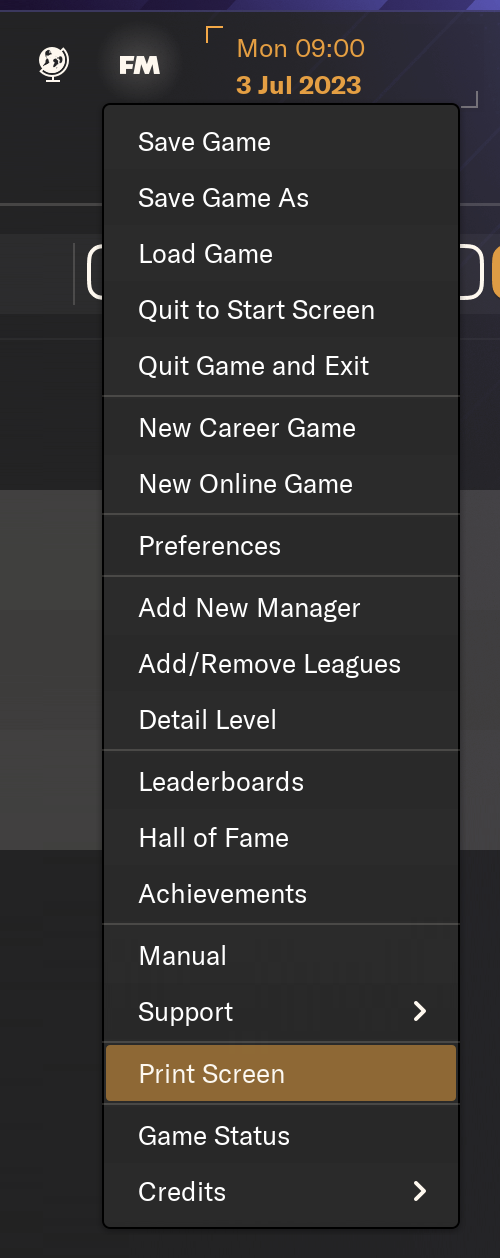
- Now click the “FM” Icon and “Print Screen”
- Then make sure that “Text File” is selected
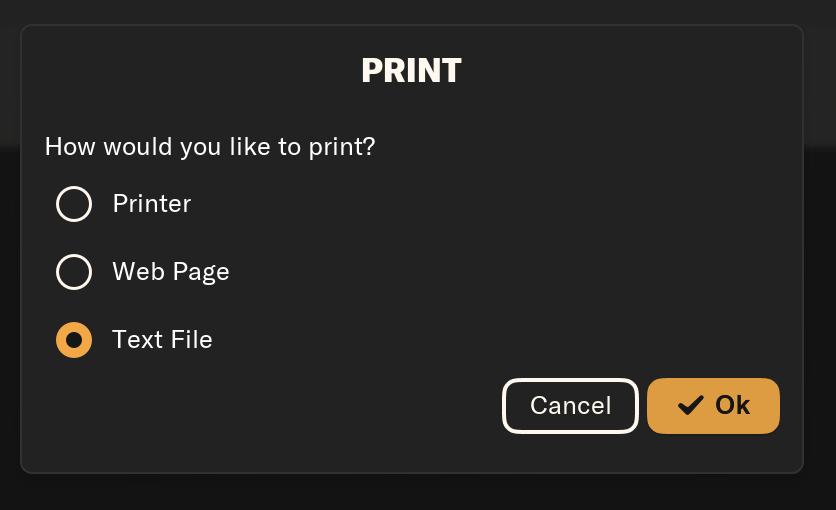
- Click okay and give your file a name such as newganfaces.
- Now remember the place we've been to twice already where we put the faces and the views and filters folders. Go there again and you should see a file called “newganfaces.rtf” or whatever you called it.
Mac: Application Support/Sports Interactive/Football Manager 20XX/newganfaces.rtf
Windows: Documents/Sports Interactive/Football Manager 20XX/newganfaces.rtf
Step 7) Using the FM.Z Tool
- Where it says “Create Profile” give it a name, something that relates to your save. Then click “Create” then where it says “Select Profile” click the dropdown to select the recently created profile.
- Where it says “Select Image” browse to the folder where we put the newgan faces e.g.
Mac: Application Support/Sports Interactive/Football Manager 20XX/Newgan Faces Megapack/
Windows: Documents/Sports Interactive/Football Manager 20XX/Newgan Faces Megapack/
- Where it says “RTF File” browse to where we saved the RTF file.
Mac: Application Support/Sports Interactive/Football Manager 20XX/newganfaces.rtf
Windows: Documents/Sports Interactive/Football Manager 20XX/newganfaces.rtf
- If you're doing this for the first time make sure that “Mode” is set to “Generate” if not you may want to consider using “Preserve” instead to keep the faces you've set previously.
- Now click “Replace Faces”
- You will see some loading animation and a success message.
- If you want to confirm that it worked. Check for a config.xml in the location you just selected for “Select Image”
Mac: Application Support/Sports Interactive/Football Manager 20XX/Newgan Faces Megapack/
Windows: Documents/Sports Interactive/Football Manager 20XX/Newgan Faces Megapack/
Step 8) Reset your FM Graphics Cache
Now you'll need to reset your Football Manager Graphics Cache to make sure it picks up the new files.
Simply follow these instructions:
a) Open Football Manager
b) Click Preferences on the start screen (or if you're already in a game FM Logo > Preferences)
c) Click the “Advanced” tab
d) On the right hand side select “interface”
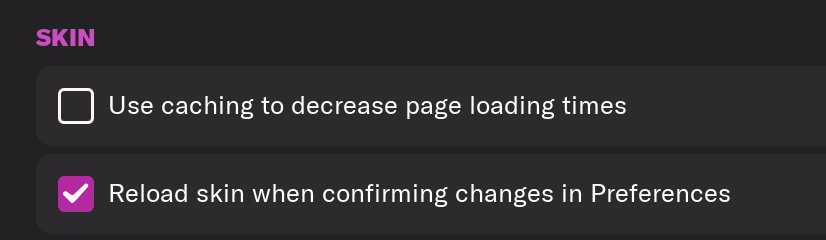
e) Scroll down the Skin Heading
f) Uncheck “Use caching to decrease page loading times”
g) Tick “Reload skin when confirming changes to preferences”
h) Click “Reload Skin”
And now all the faces should be appearing for your newgens
You should go back into the preferences and follow the same steps but this time tick “Use caching to decrease page loading times”, this will help with the long term performance of the game, but needed to be unticked to install these graphics.
Frequently Asked Questions
You will have to reload the skin as per the installation instructions each time as well.
You'll need to Login to comment
Bushwakka
I done this using FMRTE. I downloaded the newgan face pack, there are about 10 folders and around 9 sub folders. I moved all the faces into one folder called "mega_newgan". Opened FMRTE pointed it towards the mega_newgan folder and hit install. FMRTE then replaced all the newgen faces and installed the folder into the football manager/graphics folder along with a config file. That is it, that is all you have to do. Then saved the game, cleared the cache, reloaded the save, job done! No messing about 🙂
Oldhaz
Hi there, this is my first time posting on here i was looking for some help getting this to work. Its my first time trying this as ive finally got a computer that is powerful enough to allow me to customise my save how i want and these faces have always wound me up.
Im not sure exactly where im going wrong, ive got an .rtf file with 10k players in it and its in the fm24 folder, and then i have a folder in the graphics called “AI NEWGEN FACES” which was previously called players but i changed as the instructions said. ive followed them pretty close to the letter but now when i try “replace faces” on FMZ Tools absolutely nothing happens and no config file and ive tried moving the folders over but no luck. help would be greatly appreciated cause i think im right there and want to get this done.
Thanks
PoorJack
So, you've a folder structure like this?
…\Football Manager 2024\graphics\AI NEWGEN FACES\male\African
…\Football Manager 2024\graphics\AI NEWGEN FACES\male\Asian
…\Football Manager 2024\graphics\AI NEWGEN FACES\male\Caucasian
At “Select Image Directory”, you set all the way to “AI NEWGEN FACES”…
May have a look at: https://www.youtube.com/watch?v=fgo31nnmrZM (Compare with the folder level he sets… not sure if it's the reason though.)
Azrael
Please use FMRTE (free version is OK for this) facepack installation feature for these faces and stop complicating your life, bud.
Oldhaz
Essententially except instead of african/asian etc etc its just folders numbered 0 through 10
I used the video and copied his steps, cant seem to see where i went wrong but still doing nothing when i select replace faces
am i not supposed to set all the way back to AI NEWGEN?
thanks for your help
PoorJack
“Essententially except instead of african/asian etc etc its just folders numbered 0 through 10”
OK, I see… In “URAN Ultra Realistic Newgan Faces”, the folders are in the form of “players” > “male” > “0”, “1”,… as yours. However, “UltraRealistic NewGAN Cutout-Faces” has the same folder structure as in the video, using “African”, “Asian”,... etc.
For reference:
https://fm.zweierkette.de/en/ultrarealistic-newgan-faces-english/
https://fm.zweierkette.de/en/uran-facepack-en/
“am i not supposed to set all the way back to AI NEWGEN?”
You missed the point completely: All these folder names and how deep it goes are never the reasons (EDITED: at least, as in NewGAN Manager). Otherwise, you should see this information (or warning!) mentioned and emphasized in the instructions or video, don't you think?
He goes all the way to the folder right above “African”, “Asian”,… etc.
You set it to "AI NEWGEN FACES", and there's still a folder “male” before reaching the level of “African”, “Asian”,… (or “0”, “1”,… in your case)? (According to the screenshots, it seems so…)
Anyway, hopefully, this is the reason… If you've followed every step correctly, then I don't see what else could go wrong. Are you sure the config.xml file is good?
EDITED: About setting the folder path in FM.Z Tools, apparently the above may not be the reason, sorry. Please refer to the official pages (FM.Zweierkette) above, or https://www.youtube.com/watch?v=GksR7qbDVgQ
In NewGAN Manager, that's what I've learnt: go until the “races” level or it won't work… My bad, as it seems to be different in FM.Z Tools: https://www.youtube.com/watch?v=nmMC7KDzBno
twrs
I'm having the same issue and I've also followed all the same steps and read the advice listed here. I'm not sure what I'm missing. I had this working all okay prior to a reformat.
When I click ‘Replace Faces’, nothing happens.
If I'm reading @PoorJack reply correctly, I have removed the ‘Male’ folder and simply have the 0,1,2[…etc] folders and still nothing.
Thanks for any help.
PoorJack
As said in other replies, there's no way to ask users to change file/folder names, or modify the folder structures on their own. You're not given any instructions to do so anyway.
By the way, you don't have to remove any folders, just point the path to the level right above “0”, “1", “2”,… that's it. Simple! Anyway, appreciated that you're trying and experimenting…
Apparently, I've figured it wrong about the folder path, sorry… Please refer to the official page: https://fm.zweierkette.de/en/uran-facepack-en/ or https://www.youtube.com/watch?v=GksR7qbDVgQ
In NewGAN Manager, we used to go to the level right above the “race” folders… it's seemingly different in FM.Z Tools: https://www.youtube.com/watch?v=nmMC7KDzBno
BAD-RELIGION
My only issue with all the packs I downloaded is that all players have short hair (no bald, no long, no curly). So it all faces become a bit “repetitive” and lack variety when you have too many newgen players in your game.
PoorJack
Then, consider creating your own player facepacks, or contributing to any existing packs… AI has made things much easier:
https://www.youtube.com/watch?v=rpGpTIapPhs
scott1239
on a few of my players ive lost the newgen face but now they are just black. so no face at all, its only happened on a few of my players. ive tried regenerating and preserving but no luck
Marketh
Hi all, when using FMZ Tools, the only folder it can locate in the Application Support FM24 folder is Editor Data, other folders like graphics etc do not appear, is there something in permissions I need to change for this to work? Thanks
Cullen Lambird
Hi, when it comes to staff faces i am struggling, it says to follow the new fmz tool rather than newgan as this is my first time installing. I cannot seem to get the fmz tool to create the config for staff. Any advice would be appreciated!
I have the file unzipped and in graphics, the filters and views files in their respective folders. ive tried a few different ways according to youtube videos to get the rtf file. my thought is maybe its the MACOS folder within the staff newgen faces that is causing an issue as im on windows, although all of the images are in the same folder. Ive tried adding new manager as per the instructions and getting the newgens as well as going along with my regular as per different videos i watched.
let me know if i have missed a trick
Samirah
I was having the same problem as several others as well. I had renamed the folder with the faces to AI Newgen Faces, replacing the ‘players’ folder. The way I got it to work was to go back and re-add a ‘players’ folder in the AI Newgen Faces folder and then move the ‘male’ folder into the ‘players’ folder. When I did that and set FM.Z tools to the AI Newgen Faces folder, it started working.
Hope that helps.
Philipp Roloff
Hey, is it not working on Mac anymore? I've followed all the steps, but I can't get the config to generate. Thanks.
Har1equin
Just downloaded the New Gen pack. I have followed every instruction to the point where I have the .rtf file. However, I simply cannot find anyway to browse to the downloaded faces file or the .rtf file on my MacBook from with the FMZ Tools Pop Up. The normal way to access library is through the Go Option button in Finder but that is not available from the pop up. When I go in through the MacIntoshHD route, I can get to Application Support, where all of the FM stuff is, but the folder list does not show the Sports Interactive folder (I can see it just fine in Finder). I have done a search within Application Support and it shows me Football Manager Folder, but when I open that it has nothing but skins, editor_data, and games folders. Even though I have tried moving the .rtf file directly there neither it nor the extracted faces files show up in the directory. I have gone back in and checked through Finder that they are there. It is obscure to me why only those 3 folders are showing, because there are clearly more folders in my FM folder. I have moved the .rtf file to my desktop, and I can find it there. I tried copying the NEWGEN Faces folder to my documents folder and pointing it there, but still nothing. Can anyone help please?
Har1equin
Just downloaded the New Gen pack. I have followed every instruction to the point where I have the .rtf file. However, I simply cannot find anyway to browse to the downloaded faces file or the .rtf file on my MacBook from with the FMZ Tools Pop Up. The normal way to access library is through the Go Option button in Finder but that is not available from the pop up. When I go in through the MacIntoshHD route, I can get to Application Support, where all of the FM stuff is, but the folder list does not show the Sports Interactive folder (I can see it just fine in Finder). I have done a search within Application Support and it shows me Football Manager Folder, but when I open that it has nothing but skins, editor_data, and games folders. Even though I have tried moving the .rtf file directly there neither it nor the extracted faces files show up in the directory. I have gone back in and checked through Finder that they are there. It is obscure to me why only those 3 folders are showing, because there are clearly more folders in my FM folder. I have moved the .rtf file to my desktop, and I can find it there. I tried copying the NEWGEN Faces folder to my documents folder and pointing it there, but still nothing. Can anyone help please?
Rivaz
Just decided I had to try this - but I must be doing something wrong. I have followed the tutorial to the letter and watched the video. So far so good. The Fm.z provides me with what looks like a perfect xml, with all neccessary IDs. I have run the program twice, one with a new manager and one with me as the manager, and I have used three different skins, including the original FM. In none of the cases do any of the newgen faces turn up. All the old gen faces have disapeared however, and do not even show a blank - just nothing. So something has been substituted, but not quite what I expected…….. Any ideas?
Barry John McGinn
Getting this error when trying to import view on the shortlist screen - can anyone help please?
SteelCityCaesar
Hello - I'm a little confused about the staff face pack. I successfully used the FMZ Tool to do the regen players but the filter (is newgen) doesn't seem to work on staff - it doesn't filter out anything.
It was my understanding that FMZ Tool replaced NewGan Faces Manager (https://sortitoutsi.net/content/63751/newgan-faces-manager) but I may have misunderstood - is that the tool I need to use for staff?
If not how do I install the staff facepack if I can't filter out the non-newgen staff on the staff search screen?
Many thanks.
Sera2
Hi,
i want to use the https://sortitoutsi.net/graphics/style/38/ultra-realistic-newgan-staff-faces-megapack but the Instructions seems outdated to and also copied from the players faces without the needed adjustments for staff faces.
How do I do it? The SCRIPT FACES staff.fmf-View is not usable in the shortlist.
So i try the “personell search” tab and there i can use the view for staff, but i cannot use the is newgen-Filter here.
So how do I do it?
@Footygamer u still there?
EDIT: The poster above seems to have the same problem. 😀
riccab
Does it work with previous versions like FM2020?